
Creating Users One at a Time
Creating a single user is a straightforward process; follow the steps below.
Practicode: Creating New Users
Creating a Single User
1. From the Practicode landing page, click the "Admin" link.

2. Click "Users"
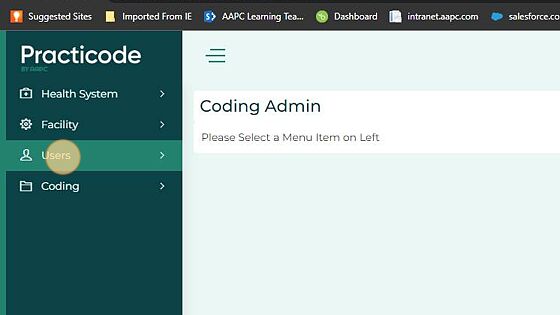
3. Click "Users"
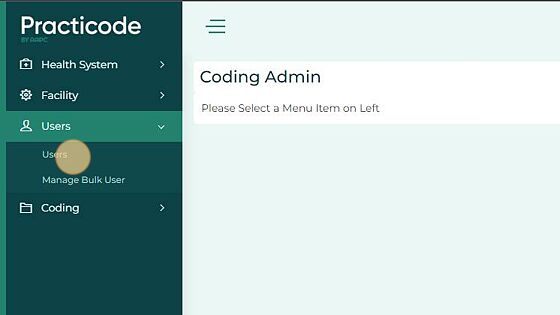
4. Click "Add New"

5. Select User Category, Choose Enterprise Client

6. Enter UserID - This can be their member ID or it can be their first initial and last name.

Alert! The users email address cannot be used in this field.
7. Enter the users First Name, Type "John [[tab]]"

8. Enter users Last Name. Type "User [[tab]]"

9. If desired enter the users skill set information. This allows you to use the coder peer comparison report.
Select the users credential - if they do not have one choose N/A
Enter Certification date or date of enrollment for new coders
Choose the skill level.

Tip! You cannot assign the team when creating the user. Team assignment can be made after the user has been created.
10. Enter the users email address.

11. Enter the users password. Passwords be 7 characters long and must have at least 1 upper case letter, 1 lower case letter, and a number.

12. Re-enter the password

Tip! Users will be prompted to change their password when they log in for the first time.
13. Set the User Type as "Normal"

14. Check the "Learner" box

15. Check the "Send Email to User" box, this will notify the user about their access including their username and password.

16. Choose the Health System | Click "Select"
Check the box next to the Health System you want to add the user too.

17. Select the "Root Health System", it may be the same name as the Health System.

18. Select the desired Facility(ies).
Click "Add New User"

19. Ensure that the desired patient type is selected. Click "Continue to Submit" to create the user.

Tip! Professional Fee services are listed under the OPD patient type.
Creating Users in Bulk
Alternatively, you can create users in bulk following the steps below.
Practicode: Creating New Users
Creating Users in Bulk
20. Using the User Upload Template: https://aapcproduct.s3.us-east-1.amazonaws.com/Practicode_Files/bulk_user_uploadtemplate.xlsx
21. Edit the template to reflect the user information to upload.
Click "Save"

22. Click "Close"

23. Click "Admin" link

24. Click "Users"

25. Click "Manage Bulk User"

26. Click "Choose File"

27. Select the saved file with your user. Click "Upload"

28. Click "Ok" to confirm upload.

Tip! The system will indicate if the uploads are successful or unsuccessful.
29. Click the Batch ID number to see the results of the upload.
